This document describes the configuration features related to DS for Mobile.
1. Overview of the Settings Function
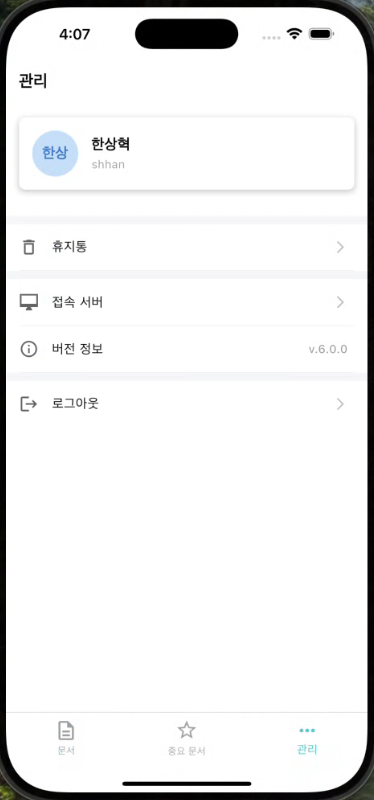
Provides features such as app settings, user information verification, trash management, version information verification, and server connection settings.
Users can easily manage the app's basic operating environment through this menu.
2. Overall Flow
| step | Description |
|---|
| 1 | bottom of the appSettingsSelect a menu. |
| 2 | User information, version, recycle bin, server settings, and other items are displayed. |
| 3 | You can select the desired item to move to the detail screen, where you can change or check the settings. |
3. Feature Guide
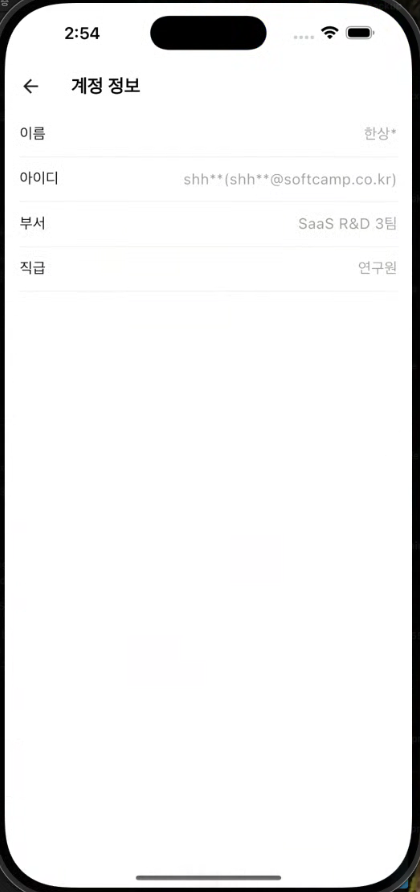
- You can check the account information of the logged-in user.
- name
- id
- Department
- Position
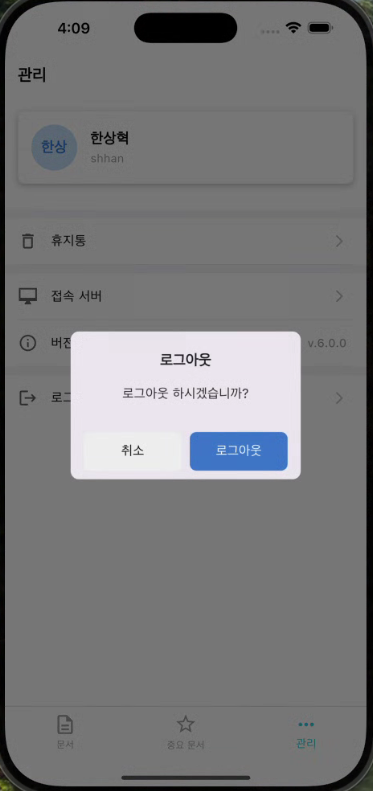
- When you log out, the current session will end, and you will need to log in again the next time you run it.
- After logging out, cache data and temporary files will be automatically deleted.
| App Settings Page | User Information | Logout |
|---|
 |  |  |
3.2 Trash Bin
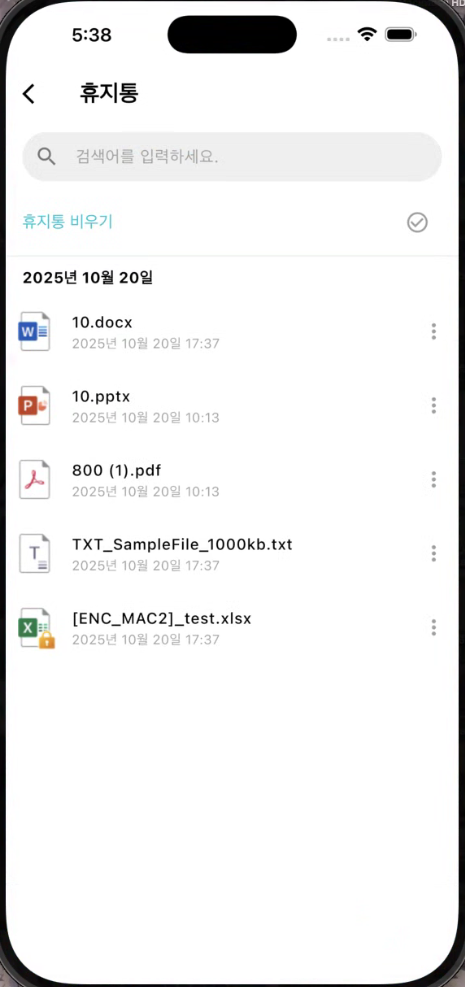
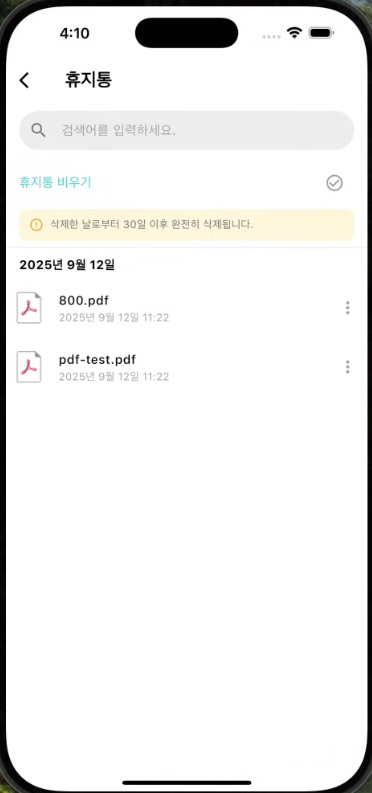
- This is the space where deleted documents are temporarily stored.
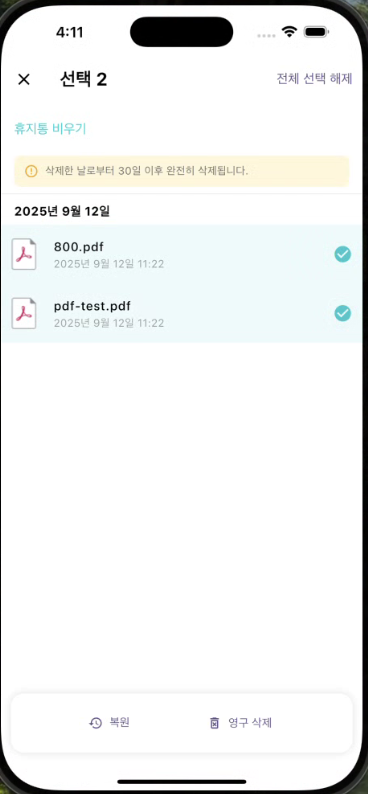
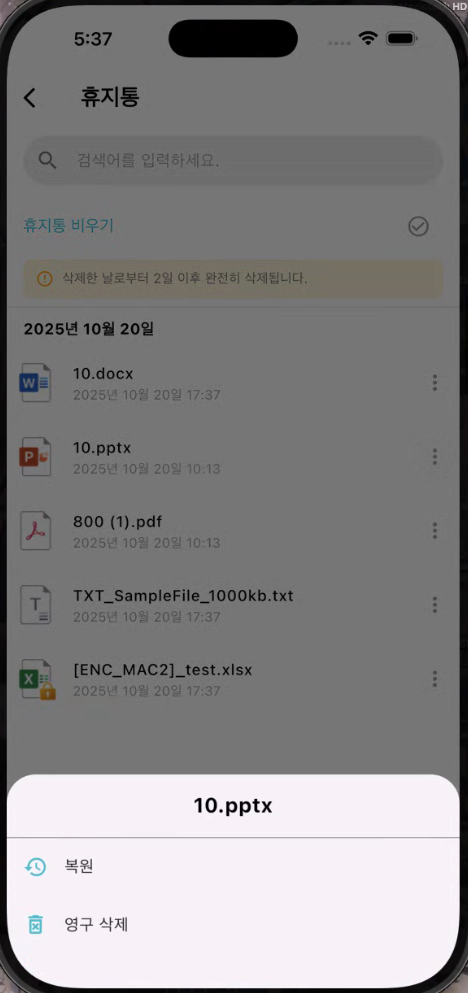
- In the recycle bin, the following tasks can be performed:
- **Restoration:**Restores the deleted document back to the document list.
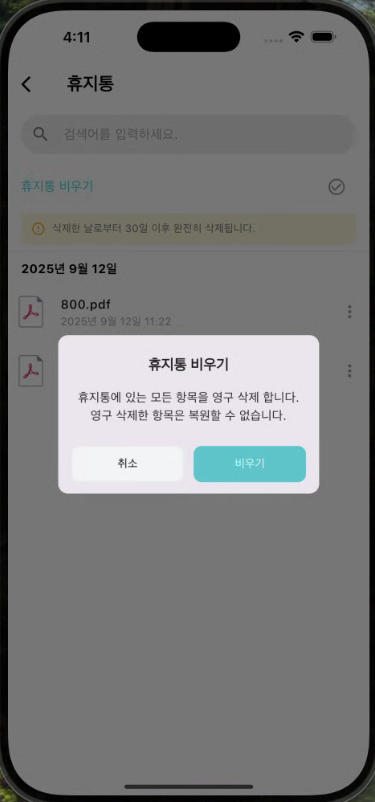
- **Permanent deletion:**The document will be completely removed and cannot be recovered.
- After a certain period (e.g., 30 days), it will be automatically permanently deleted.
| Trash bin | Automatic Deletion (Permanent) | Multiple Selection |
|---|
 |  |  |
| Trash Can - More Details | Emptying the Trash Bin |
|---|
 |  |
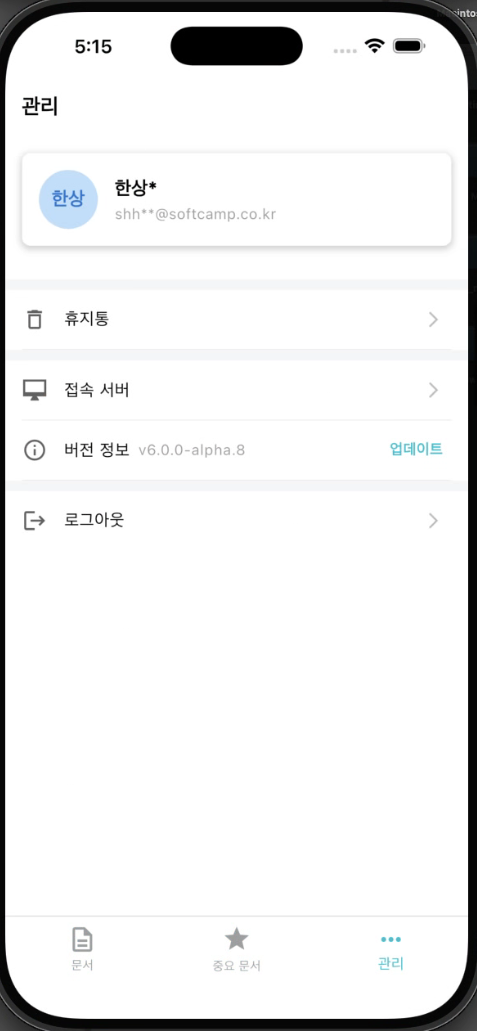
- You can check the currently installed app version.
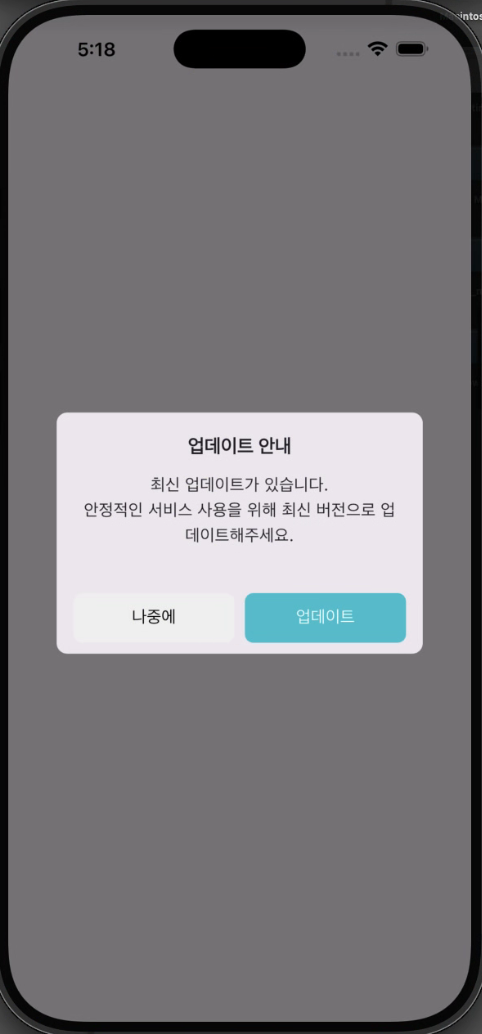
- If there is a new version, the "Update" button will be displayed.
Update Check Point
- **After login is complete:**Automatically check for updates upon successful login.
- **When clicking on management-version-update:**You can check the version information and manually check for updates in the settings menu.
- The update button is displayed even if the user cancels in the update message.
| After login is complete | management-version-update |
|---|
 |  |
3.4 Connection Server Configuration
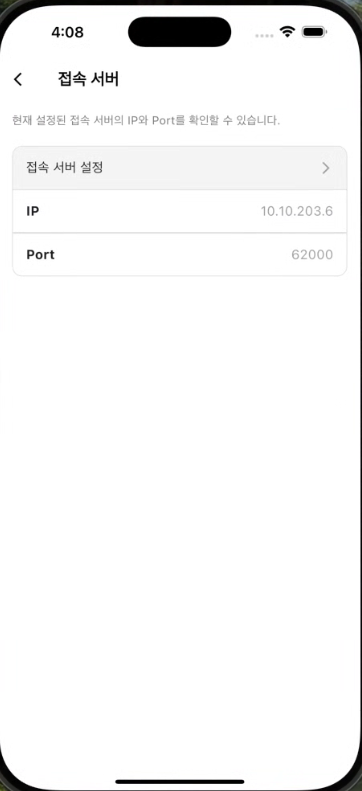
- to connect the appDocument Security ServerSets the information of __PH_0__.
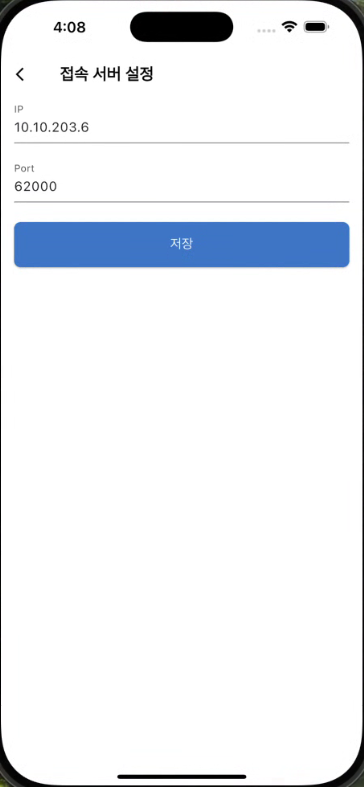
- The default settings are configured automatically, and manual changes can be made if necessary.
- Example of configuration items:
- Server address (IP or domain)
- Port Number
- A restart of the app may be required after the changes.
| Connection Server Settings | Server Modification |
|---|
 |  |
Reference
- If the app does not function properly after changing settings, it is recommended to restore to default settings.
- If the network or certificate settings are incorrect, server access may be restricted.